Word
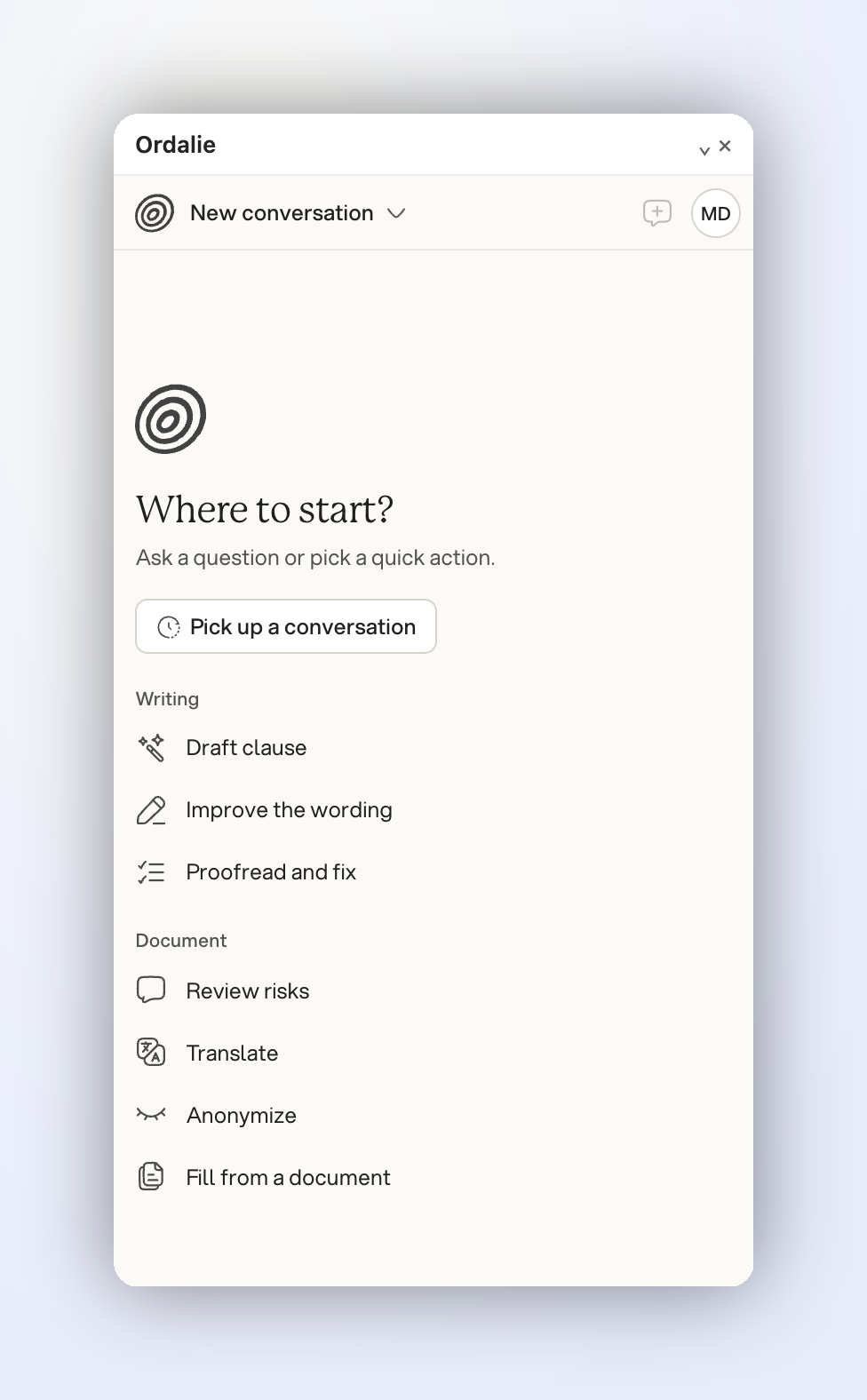
The Ordalie Assistant for Word add-in brings Ordalie's legal assistant straight into Word. It reads the open document or the passage you selected, and writes its suggestions into the document itself, as tracked changes and comments, the way a colleague would when reviewing your draft.
Install the add-in
- Open a document in Word.
- On the Home tab, click Add-ins.
- Search for Ordalie, find Ordalie Assistant for Word and click Add.
- Accept the terms if Word asks you to.
To equip a whole team, a Microsoft 365 administrator can deploy the add-in from the admin center (Integrated apps), so it shows up for the selected users with no individual setup. If the add-in doesn't appear, reload Word, check that you're signed in with the right Microsoft account, and ask your administrator whether add-in installation is restricted.
Open Ordalie and sign in
Click Ordalie in the ribbon: the pane opens to the right of the document. Sign in with your Ordalie account (the same one you use on the web app). Your conversations are kept, so Pick up a conversation brings back an earlier exchange on the same document.
What you can do
Ask a question in plain language about the document or the selected text, or pick a quick action.
Writing
- Draft clause: describe the clause you need and Ordalie inserts it at the cursor.
- Improve the wording: rewrites the selected passage to make it clearer and more precise, without changing its legal meaning.
- Proofread and fix: corrects typos and inconsistencies across the document.
Document
- Review risks: adds Word comments on the main risks and negotiation points in the document.
- Translate: translates the selection or the whole document into the language you choose, keeping formatting and defined terms.
- Anonymize: replaces names, companies, addresses, emails and phone numbers, amounts or dates with placeholders such as [Name] or [Company]; you choose the categories.
- Fill from a document: pick a document from your Ordalie workspace and the assistant completes the open document from its content.
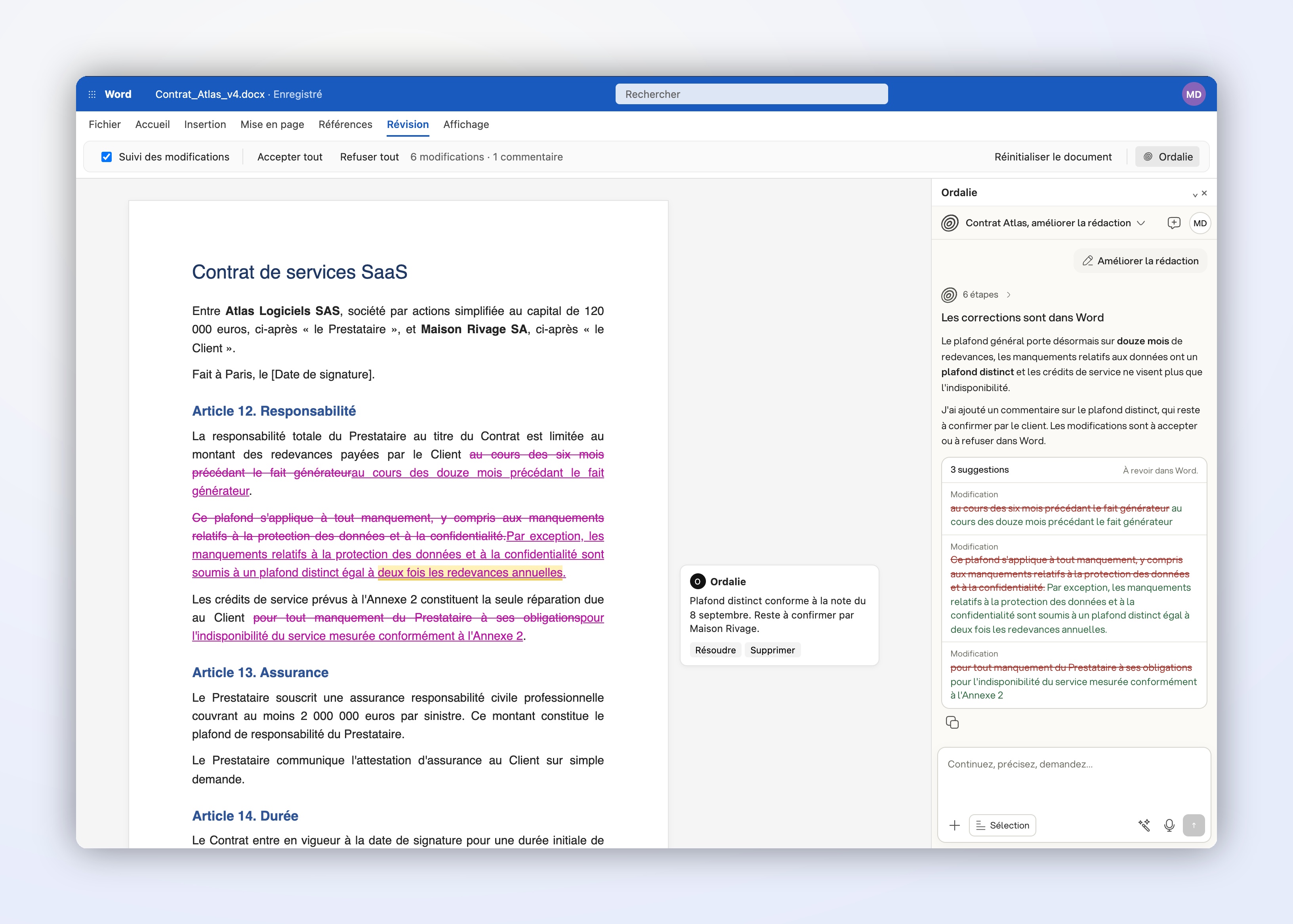
You stay in control
Edits are applied as tracked changes and remarks as Word comments. The pane lists every suggestion, and you accept or reject them in Word, one by one or all at once from the Review tab. Some Word clients don't support tracked changes or comments; in that case the pane tells you before running the action.
Tips for good results
- Select the relevant passage before running an action, so the request applies to that passage only.
- Give a precise instruction: type of document, which party you act for, goal and tone.
- Check dates, references, amounts and sensitive wording before accepting changes.
Common questions
Does Ordalie change my document without my approval? No. Everything goes through tracked changes and comments: nothing is final until you accept it.
Which versions of Word are supported? Word for Windows, Word for Mac and Word on the web, with a Microsoft 365 account.
Does Ordalie keep my documents? The content needed for a request is sent to Ordalie when you run an action. Conversations are saved in your Ordalie workspace so you can pick them up later, with the same safeguards as the rest of the platform.
Do I need an Ordalie account? Yes. The add-in uses your existing Ordalie account; it does not create a separate one.