
Other Features
Searching your documents
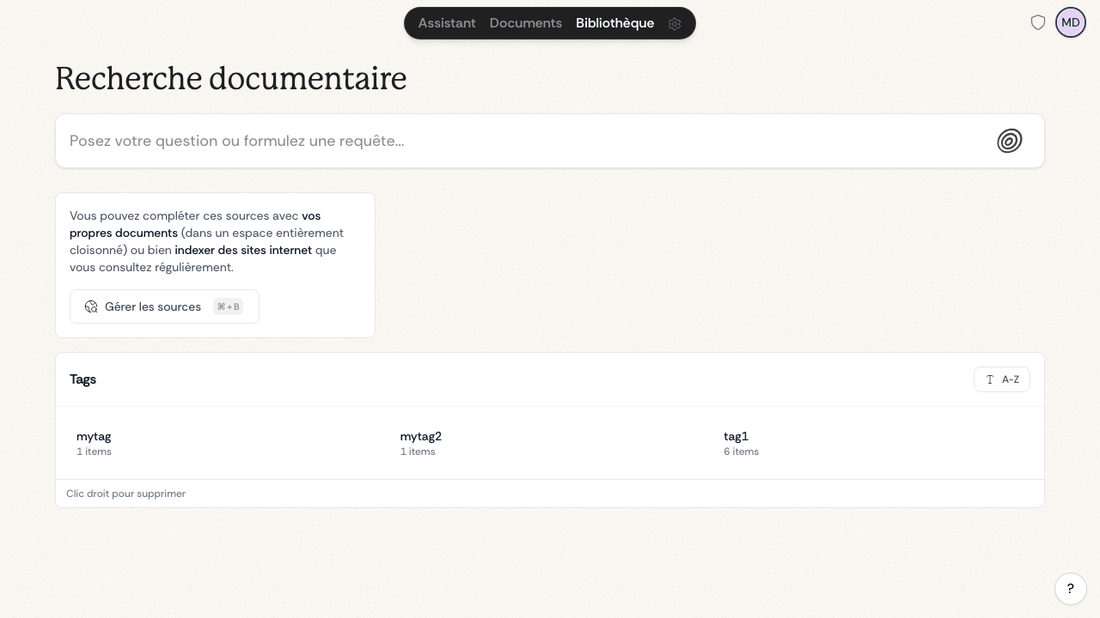
Document search gives you quick access to information, without having to phrase a long question:
- Open the Library from your workspace, or from the Dynamic Island when it's available to you.
- Type your query in plain words, or by keywords.
- Filter the results by source in a moment.
- Open the matching document straight away.
This is handy when you know exactly what you're after and just want to reach it fast.
Searching everything at once
A quick search is always within reach, wherever you are in your workspace.
- Open it with Cmd + K or Ctrl + K.
- You can also open it from the Dynamic Island.
- It looks across actions, documents, integrations, conversations, workflows, tags and legal results.
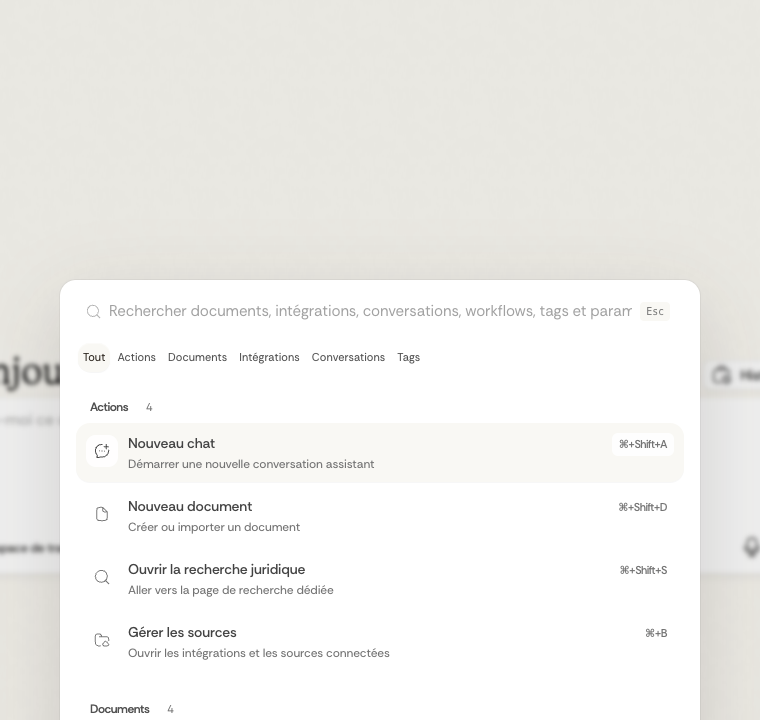
It also offers shortcuts to where you go most: the assistant, your documents, legal search, your source settings and your account settings.
Narrowing by category
You can limit what you see to one category at a time.
- Actions to find commands and shortcuts.
- Documents to search your files.
- Integrations to search connected folders and external sources.
- Conversations to reopen an earlier exchange.
- Tags to find your saved tags.
Start with a broad search, then narrow to the category that matches what you want to review.
Saving your prompts
The prompt library lets you save, organise and reuse the questions and instructions you come back to, so your analyses go faster.
Ask the assistant and pick the Multi-document Analysis workflow. Your saved prompts appear right there, just below where you drop your documents.
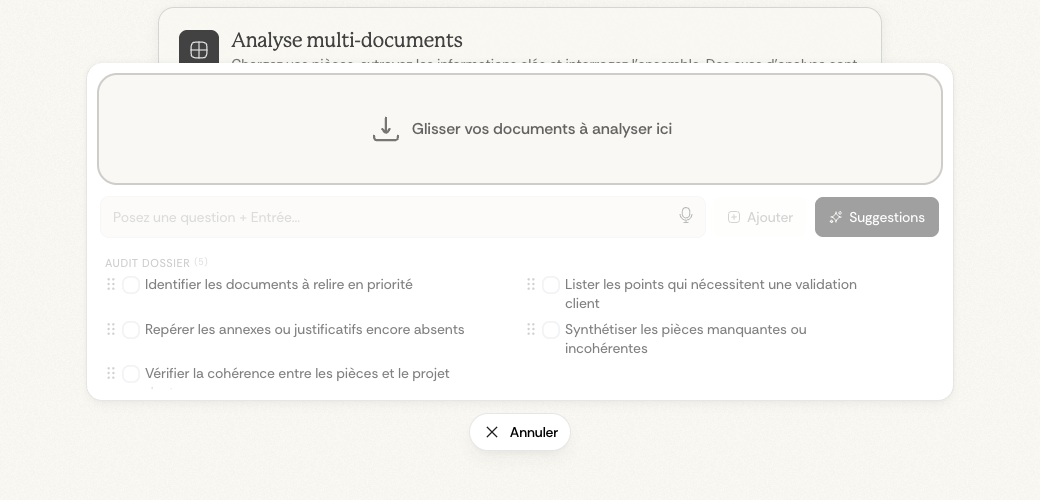
Suggested questions
When you link documents to an analysis, Ordalie suggests relevant questions drawn from their content. You can:
- Adjust a suggestion before you save it.
- Ask for more suggestions whenever you like.
- Dictate your prompts with the built-in microphone.
Organising by category
Your saved prompts sit in categories you can shape yourself:
- Create your own categories (for example "Research", "Contract Analysis", "Due Diligence").
- Move prompts between categories by dragging them across.
- Edit or remove your prompts at any time.
Running several at once
Select several saved prompts and run them together on your linked documents. It's a simple way to put the same set of standard questions to every new document.
Working in several languages
Ordalie works in more than one language:
- To change the display language, open your settings and choose French or English (the two available today).
- It can read and interpret texts in different languages (English and French).
- It recognises the language of each document you import, so it can handle it accurately.
Library, document search and the Ledger
Depending on how your organisation is set up, your workspace may show the Library / document search or the Ledger. The Library searches the documents, sources and tags you can access. The Ledger is a more structured view, focused on contracts, clauses, counterparties and source citations.