
Integrations
- Revocable access: you can disconnect any connection at any time from your settings
- No copying: your outside files aren't duplicated on Ordalie's servers — they're reached only when needed
- Separate access: personal connections stay private, while organization connections are open to every authorized member
Availability: connections are available for all PRO users. With Ordalie MAX, custom connections can be built around your specific needs. For a complete solution with two-way synchronization, discover Ordalie Vault.
Managed APIs
In some setups, Ordalie offers managed APIs to agents and workflows without ever handing your API keys to the scripts that run. You can turn this on from Settings > Integrations when it's enabled for your account or organization.
DeepL can translate content from workflows or agents. Pappers can pull official details about French companies. Ordalie stays in control of the calls: server-side authentication, access policies, quotas, and caching where it makes sense.
These APIs are meant for AI-assisted work, not as a general developer console. If one is turned off for your account or organization, the workflows that rely on it may ask you to enable it or fall back to another method.
Microsoft Teams
The Microsoft Teams connection exists for selected internal or assisted deployments. It can link a Teams space to Ordalie so answers or notifications land in a controlled channel. When it isn't enabled for your organization, it won't show in public settings.
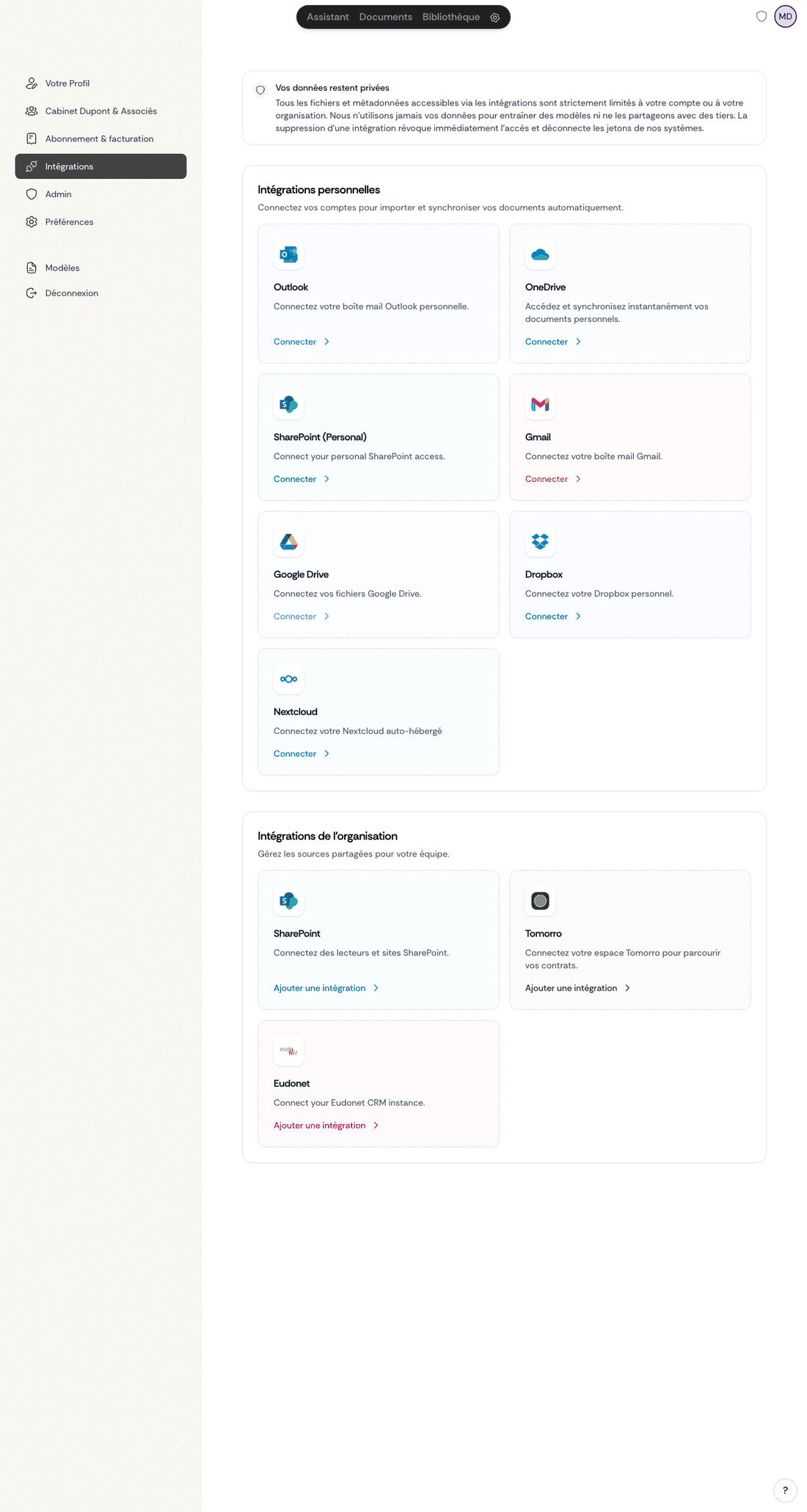
Ordalie connects to the tools where your documents already live, so you can search and analyze your outside content from your workspace without copying it across. Your files stay on their original platform, and Ordalie reaches them only when you need them.
You can connect a source in two places. From your workspace, open the Documents section in the left sidebar and use Connect a source, which opens a window titled Connect your sources. You can also open Settings and then the Integrations tab, which lists the same connectors. In both, they are grouped into a personal section and an enterprise section reserved for administrators.
Email and mailboxes
You can connect your own Outlook or Gmail mailbox by signing in with your provider account, which lets you search your emails and attachments and bring a specific message into a conversation with an @ mention. For other providers, Other mailboxes connects any mailbox over IMAP using your server address, username, and password. These are personal connections, tied to your own account.
Cloud storage
On the storage side, you can connect your personal OneDrive or your SharePoint sites by signing in with Microsoft; for SharePoint you also enter the address of your site. Dropbox and Box connect through their sign-in pages and can be given write access so you can also upload documents, and with Box create folders. Nextcloud connects to your own server over WebDAV using its URL and your credentials, and Odoo connects with your instance URL, an optional database name, and an API key. All of these are personal connections you set up for yourself.
Enterprise sources
Some sources are set up once for the whole organization by an administrator and then shared with authorized members. They appear under Enterprise & Admin when you connect a source, and under Organization Integrations in settings. SharePoint can be configured organization-wide with administrator application credentials such as the tenant, site, client ID and secret, or a certificate, which is the clearest case of an organization-level connector; it also has the personal sign-in variant described above. iManage brings your libraries, workspaces, folders, and documents into Ordalie read-only through OAuth and the credentials generated in iManage Control Center, and it can be set up either as a shared connection or so that each member signs in with their own account. Shared mailboxes connects an organization mailbox over IMAP, and Tomorro, Eudonet, Nuxeo, and Agestia connect with the API key or credentials your administrator provides.
Using your connected documents
Once a source is connected, its documents work like the files you keep in Ordalie. They show up in search, you can pull them into any conversation with an @ mention, the assistant can read and analyze them, and you can use them in workflows. A connection set up for reading lets you browse, preview, and work with those files; when the connection allows writing, Ordalie can also save the documents it produces back to the source and, where supported, create new files or folders there.
Managed APIs
In some setups, Ordalie also offers managed services that agents and workflows can call without ever handling the API keys themselves, since the keys stay on Ordalie's side. DeepL can translate content produced in a workflow or by an agent, and Pappers can look up official information about French companies. You turn these on from the Integrations tab when they are available for your account or organization.
Security and availability
Connections that support it sign in through OAuth, while the others authenticate with credentials or an API key; in every case the traffic runs over HTTPS, and Ordalie asks only for the read access it needs. Your outside files are not copied onto Ordalie's servers, they are read on demand, and you can disconnect any source at any time from your settings. Personal connections stay private to you, while organization connections are available to the members an administrator has authorized.
Availability depends on your plan: the mailbox connections are part of the Pro plan, while most storage and enterprise sources require Ordalie MAX. If you are unsure whether a particular source is included, your settings show what you can connect.