
Main Features
Working with the assistant
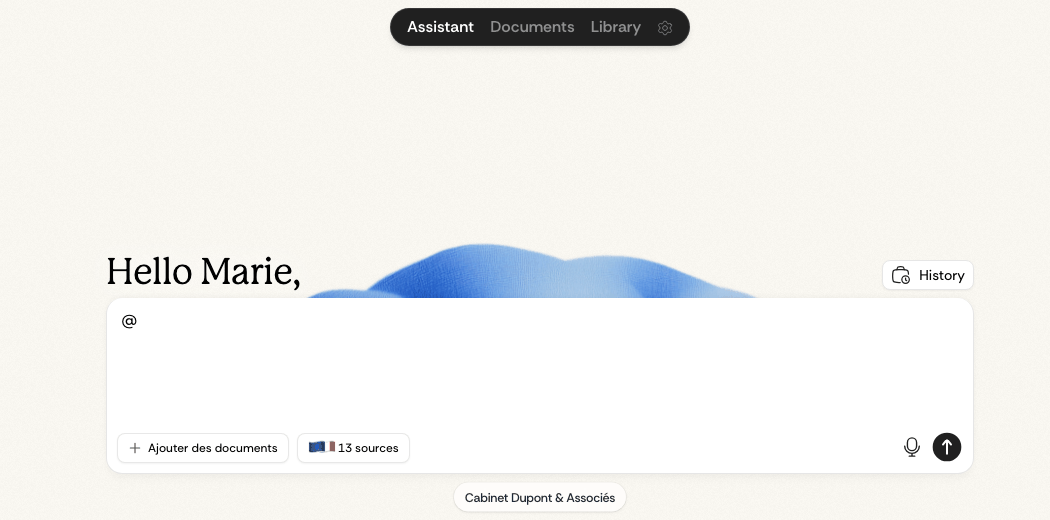
When you open Ordalie, you land in your workspace, which asks what you'd like to start with. Just write in plain words and the assistant takes it from there: ask a question, request a rephrasing, analyse a passage, or generate a document.
You talk to the assistant naturally, with no jargon. It understands what you write, even very simply, and answers in context, drawing on your documents, the legal sources you've turned on, and your earlier questions.
It's a great way to:
- ask a legal question about a document
- analyse or summarise a clause or passage
- get a rephrasing or a suggested improvement
- draft a simple contract, letter, or quick note
- explore legal reasoning from a specific case
The assistant works like a responsive, versatile partner, always a sentence away.
Saving and reusing prompts
When you have a prompt that works well, save it in the Prompt Studio instead of rewriting it each time. The studio is where you create new prompts, improve existing ones, and keep a reusable library for recurring legal work.
Prompts can stay personal or be shared with your organization. Tags, favorites, recent use, search, and version history help you keep the library clean as it grows. If you already have prompts elsewhere, you can import them from a file, spreadsheet, or clipboard and review them before saving.
Working with workflows
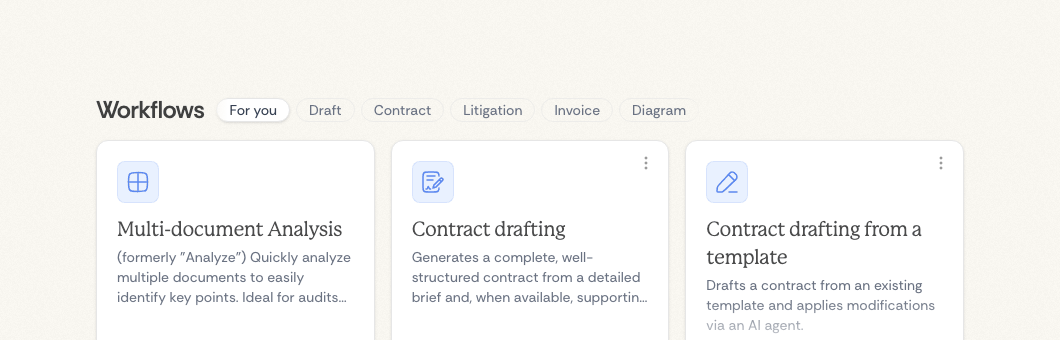
When a task is well defined, you can pick a workflow instead of writing a free request. A workflow is a guided, ready-made path that walks you through the task step by step.
Each workflow asks you for what it needs (documents, instructions, a few details) then runs a set sequence of steps to produce a structured result. It's faster, more reliable, and more repeatable than a back-and-forth with the assistant.
It's also how we've folded in some of Ordalie's earlier tools: what we used to call analysis and drafting are now workflows in their own right.
Workflows available today include:
- Multi-document analysis — Import several documents to pull out structured details (parties, dates, clauses) in a clear table. Ideal for due diligence and case-file summaries.
- Document drafting — Generate contracts, letters, or briefs from your instructions and templates. The workflow guides you step by step with focused questions.
- Research report — Run a structured legal research path that gathers sources, organises the findings, and returns a written report.
- Contract comparison — Compare several contracts, or versions of the same contract, and bring the differences together in one result.
- Hearing preparation — Analyse the documents in a case to get a structured summary: chronology, strengths, and points to watch.
- Notary workflows (beta) — Dedicated workflows for notarial matters, including sale-file review and donation-partage analysis.
- Corporate structure diagram — Turn your documents into a diagram of corporate structures (holdings, subsidiaries, cross-shareholdings).
Workflows are right there in your workspace, ready to pick. They're available to all PRO users and during a trial, and we add new ones regularly based on what we hear from the field.
When the assistant asks for clarification
When an analysis is complex, the assistant may ask a few questions to refine its answer. You're given choices to pick from, or a free space to spell out your need. You can move between steps, change your answers, or skip with Escape when a question doesn't apply to your case.
Translating a document
A translation workflow turns a document into the language you choose while creating a fresh copy. Handy when you want to keep the original, work on the translated version, and hold on to the result in Ordalie as a document you can act on.
Your organisation's administrators can tidy the workflows too: some can be pinned, hidden, or reserved for a particular context, so the list stays easy to read for the whole team.
Questions that stay with you
When the assistant needs to clarify a complex request, its questions no longer just scroll by in the conversation. They can stay on screen as a clear set of questions and answers, keeping the context behind each decision and making it easier to pick the reasoning back up.