
Legal Research
Here's how to do legal research in Ordalie: ask your questions in plain words, add your own documents for context, and check the sources behind every answer.
How to ask a question
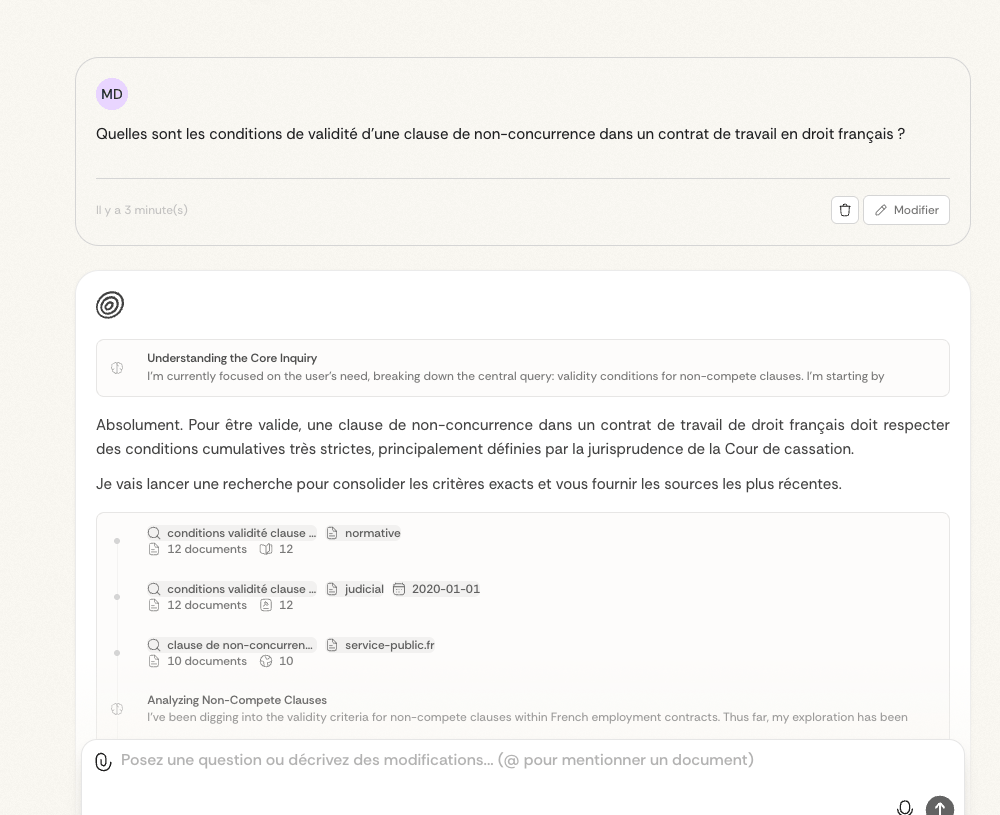
1. Start with the assistant
To begin, make sure you're set to ask the assistant — it's marked in blue, at the bottom right of where you type.
2. Ask your question naturally
Write your question where you type, or dictate it with the microphone 🎤. No need to phrase it like a technical prompt — just ask as you would a colleague. For sharper answers, add your context (the facts, the parties, what's at stake) and say what you want back (a legal analysis, references, case-law examples).
Ordalie picks the relevant sources on its own, shows you which ones, then sorts and synthesises them into an answer with matching citations.
3. Add context with @ mentions 📎
Typing @ is your way into every document and source. Type @ where you write to open a smart browser and pin exactly the context you need.
What can you mention?
- Individual Documents: Type @ followed by a document name to pin it. For example, “@lease_contract” will add this specific contract to your question’s context. To learn more about managing your documents, see the Documents section.
- Projects and tags: when your organisation uses projects, type @ then the project name to bring in that matter's context. Tags can still appear in the Library and be mentioned with @tag-name where available, but projects are the better way to keep a matter organised over time.
- Vault Folders: For users with Ordalie Vault, type @ to access your internal folders and select documents from your SharePoint, Google Drive, or other connected source. Discover all possibilities in Ordalie Vault.
- External Sources: You can also mention documents from your integrations (Google Drive, OneDrive, Teams). To configure these connections, see Integrations.
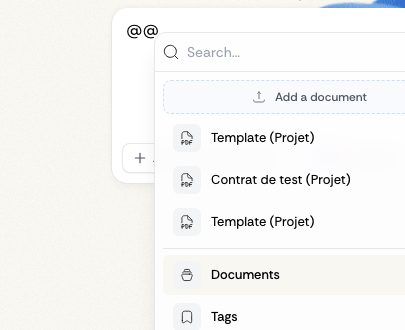
Browse with ease
When you type @, columns open so you can browse your folders just like a file explorer: open a folder to see what's inside, search at the top to filter, and select one or more items to pin.
This lets you add the right context quickly, without breaking your train of thought. For a dispute, for example, you could type: "@opposing_conclusions @our_2024_evidence What's our best strategy to answer the other side's arguments?"
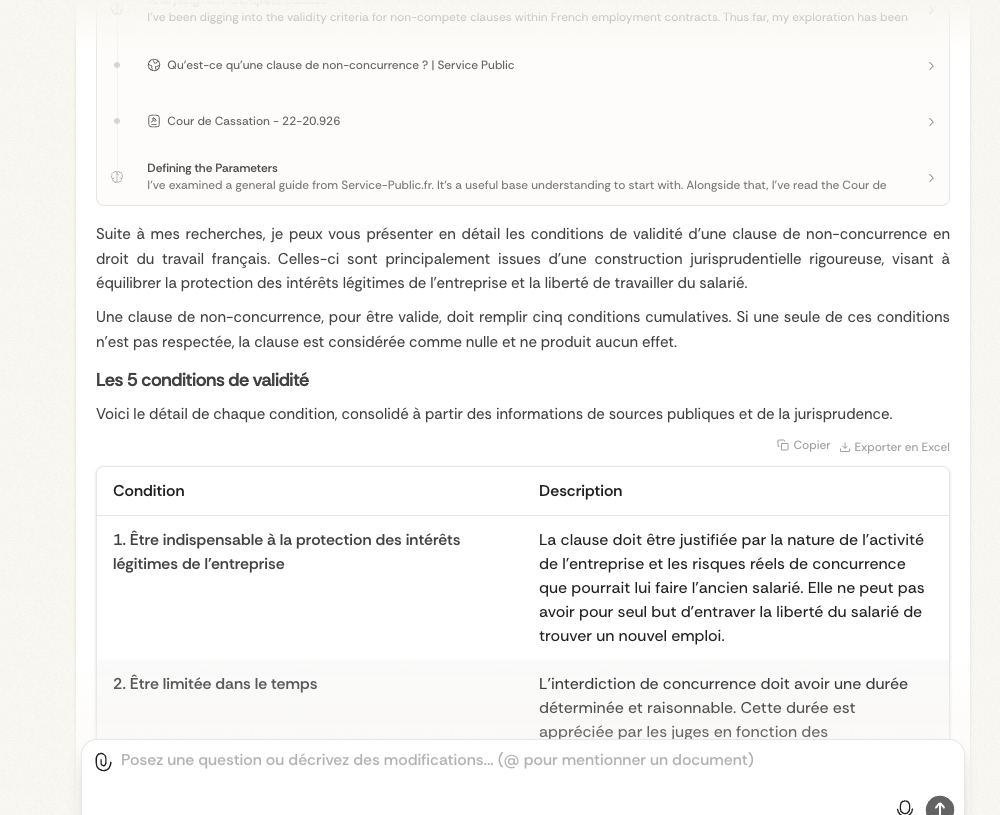
4. Check your sources in one click ✅
Every answer shows its sources as small coloured dots. Click a dot to open the source it used and confirm the details. Where possible, a link to Légifrance lets you read the original.
5. Organise your findings with tags 🏷️
While viewing a document, a court decision or any other source, you can give it one or more tags to sort it your own way (for example: "Martin file", "2024 contracts", "Sensitive clauses"). Tags are personal — only you can see them.
Tags really pay off through @ mentions: type @ and you can browse all your tags and pull in every document under one of them at once. It's a fast way to build a research context from documents you've already spotted and sorted.
Setting up sources for precise searches
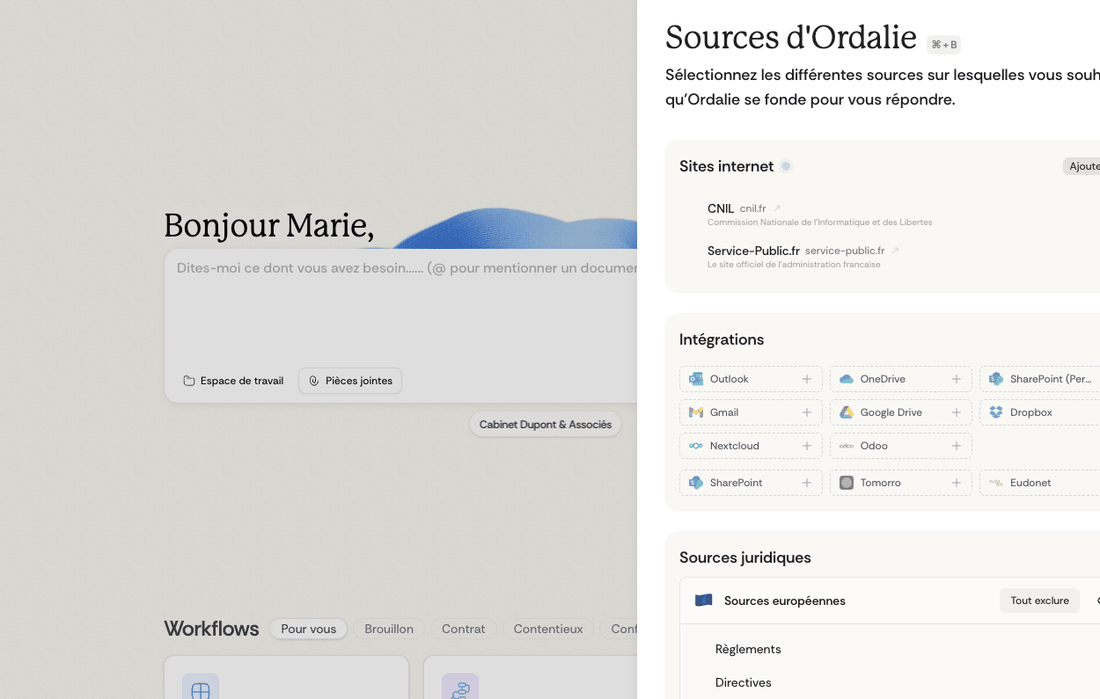
Manage your sources
- Open your sources from the icon at the top right of the screen
- Official sources (codes, case law) are on by default — turn off any that don't apply to your field by unchecking them
- To add a specific website as a source, choose Add + > Website and enter the full URL
- To use your own documents, import them with Add + > Document — they're included in your searches automatically
Filters: narrow your searches with the filters under the search bar. Pick a date range, a document type (judgment, code, doctrine) or a particular jurisdiction to home in on what you need.
Search across everything
Ordalie has one search that reaches across the whole product from a single field.
How to open it
- Press Cmd + K on macOS, or Ctrl + K on Windows/Linux
- Or open it from the Dynamic Island at the top of the app
What it finds
It can bring back:
- actions and settings shortcuts
- documents
- integrations and connected sources
- conversations
- workflows
- tags
- legal results
Some results show instantly from what's already loaded; others arrive as matching results come in.
Jump straight to a place
You can also use it to go straight to common places, such as:
- a new chat
- your documents
- legal search
- source and integration settings
- profile, organisation, billing, integration or preferences settings
Category tabs
The tabs at the top let you focus on one kind of result at a time.
- Actions shows commands and shortcuts
- Documents shows files
- Integrations shows connected folders and external sources
- Conversations shows earlier chats
- Tags shows saved tags
So you can start with a broad search, then narrow what you see by picking the right tab.
Conversation context and memory
Keep the conversation going. Ask follow-up questions without repeating the background. For example:
- First question: What's the legal definition of moral harassment at work?
- Follow-ups: What penalties apply? or Cite 3 recent cases — Ordalie knows you're still on the same topic.
Your history. Find any earlier conversation:
- Open your history from the icon at the top right
- Use the search bar to find a conversation by keywords
- Conversations are listed by date and kept for 30 days
- To pick one back up, click it
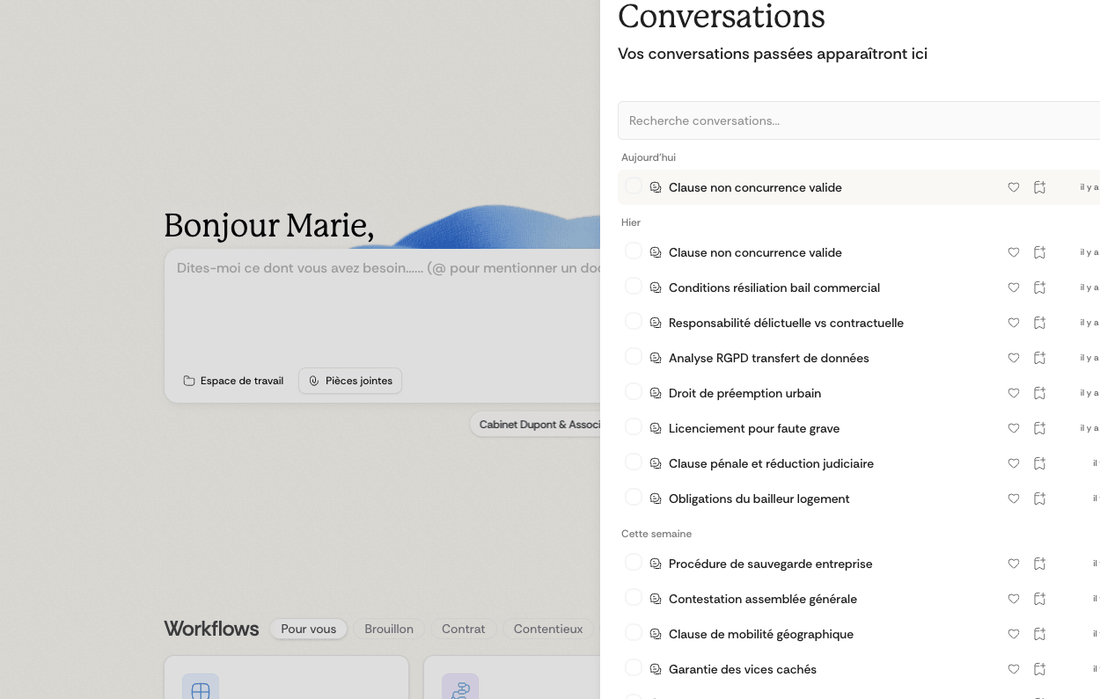
When you work inside a workspace, your conversation history stays tied more closely to that work area, so it's easier to reopen the chats linked to the same folder.
Chat from your documents
While viewing a document or source, a chat sits alongside so you can ask questions without leaving your reading. It gives you:
- Quick actions: suggestions tailored to the document in front of you
- Saved prompts: Direct access to your prompt library organized by category
- Applicable workflows: launch the workflows that fit the current document, right there
You can resize it, fold it away, keep it compact or open it wide — whatever suits you.
Analysing several documents at once (with the assistant)
To compare or summarise several documents:
- Select several files with the pin icon or the "@" key, mentioning a document — or a tag that groups several documents together
- Say what you need, for example:
- Compare the liability clauses across these contracts
- Build a table of the differences between these rulings
- Summarise each party's arguments in these submissions
- Choose the result format that suits you (a table, a bullet list, flowing text)
Interactive analysis table: ask the same question across several documents and the results land in a table — one column per question, one row per document. Sort columns (by text, number or date), filter results, resize columns, and click a cell for the full detail. You can also reword a question to create a new version while keeping the earlier results.
It's especially good for spotting inconsistencies between similar documents, or for putting comparison memos together quickly.