
Documents
To work straight from a folder of your own — local or remote (OneDrive, SharePoint, Dropbox, and so on) — or from an Ordalie project, see also Workspaces.
Bringing in and organising your documents
Import, organise and edit your documents right inside your workspace. Once a document is in, it is ready to use — with the assistant and in your workflows.
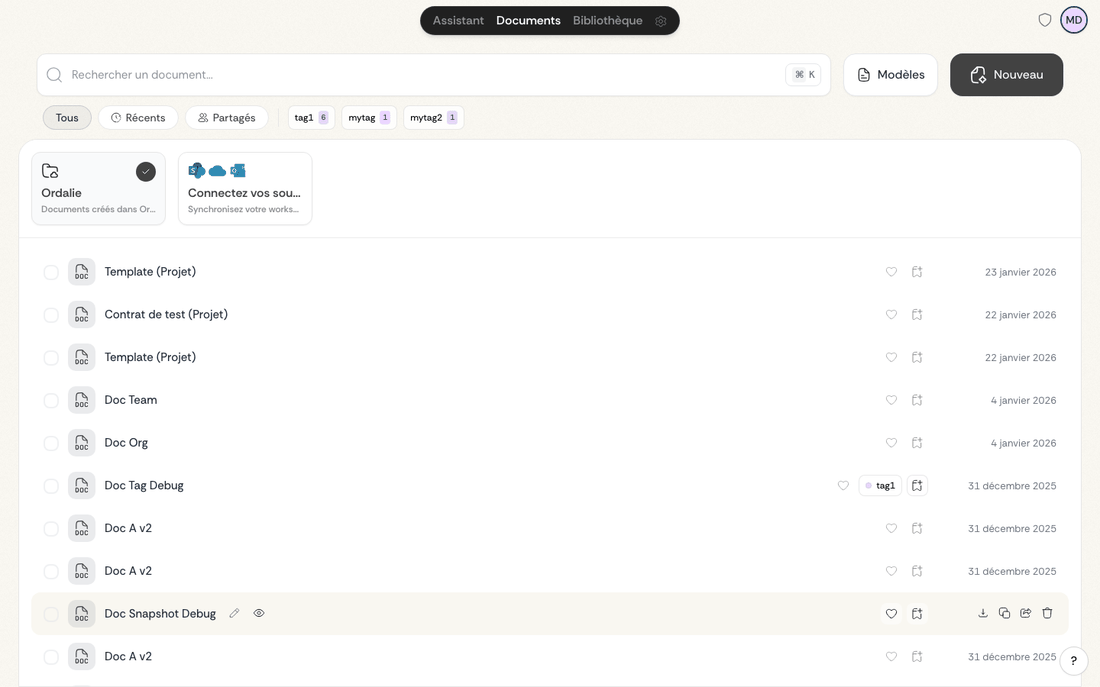
Drag in files of any common format
There are two easy ways to bring files in:
Browse and pick: choose import, then select the documents you want from your computer.
Drag and drop: drag files straight from your computer into your workspace. Ordalie recognises the content automatically and shows you what is happening as it goes.
Supported formats: PDF, DOC, DOCX, ODT, RTF, Apple Pages (.pages), TXT, MD, PowerPoint (PPTX), Excel (XLSX/XLS), common email files and common image files. PowerPoint keeps its slide structure, Excel keeps its tables, and anything unsupported is turned away right away with a clear message rather than failing later.
Automatic anonymisation: as you import, you can switch on automatic anonymisation. It replaces sensitive details (names, addresses, phone numbers) with generic stand-ins, keeping things confidential while leaving the document's structure intact.
Once imported, documents are automatically indexed and become searchable via search.
Confidentiality 🔒: your documents stay strictly private and secure. They are never shared with anyone else without your explicit go-ahead, and they remain entirely under your control.
Group a case in a project
Projects bring everything for one case together. A project can hold Ordalie documents, assistant conversations, and files or folders from your connected sources, without moving or duplicating a thing.
Your own projects: build a project around a matter, a client, a transaction or a legal topic. A “Martin matter” project, say, can hold its contracts, your assistant conversations, and files kept in OneDrive or SharePoint.
Find what you need: open a project to see everything linked to it at once, and search to filter by name, type or source.
Working with a project: when you ask the assistant or run a workflow, point it at a whole project instead of picking documents one by one — ideal for going through a full case file.
Sharing and permissions: share a project with others in your organisation. Sharing the project does not hand over what is inside — each document, conversation or external source keeps its own permissions.
For more details, see the dedicated guide: Projects.
Automatic descriptions: Ordalie reads through a folder and writes a short summary of what is inside, so you can recognise it at a glance without opening it.
Editing your documents
A full editor for every document
Every document opens in a built-in editor designed around the Word (DOCX) format. Import a Word file, edit it, then export it, and Ordalie works to keep your formatting, styles, tables and structure intact. Complex elements are preserved wherever possible, with a warning when a conversion needs a second look.
Rich formatting: everything you would expect — bold, italic, underline, bulleted and numbered lists, tables, hyperlinks, and the hierarchical paragraph styles legal documents call for.
Legal structure: dedicated tools help you lay out a document the way the law expects, handling articles, paragraphs and subsections with the right numbering and indentation applied for you.
Track changes and work together
Edit together, in real time:
Several of you can work on the same document at once, just like in Google Docs. Your colleagues' changes appear instantly on screen, and each person's cursor has its own colour.
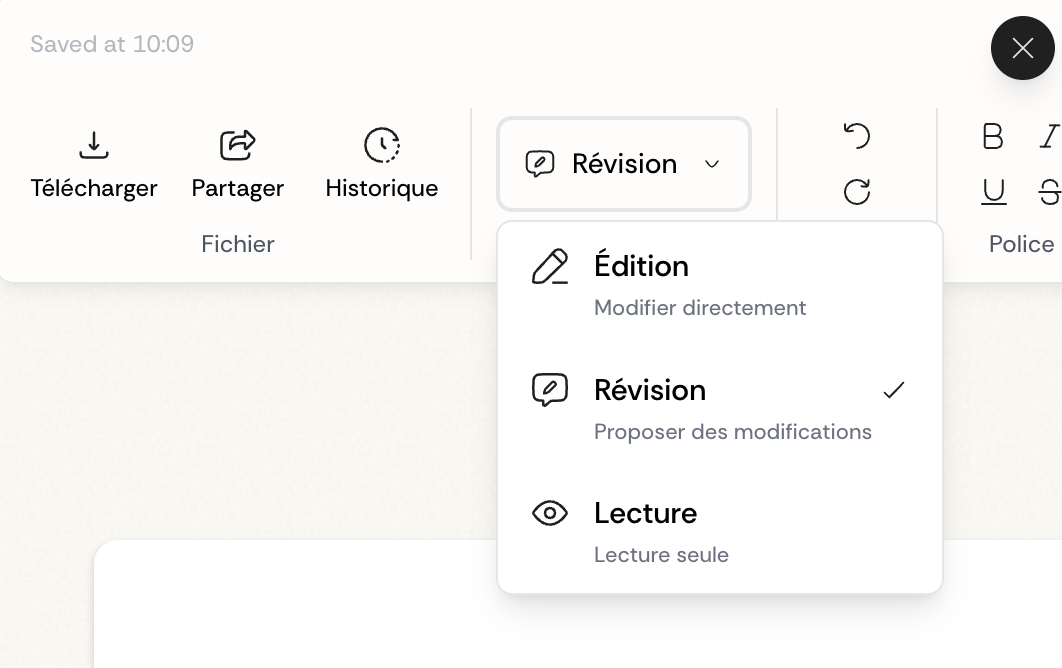
Built-in track changes: Ordalie tracks changes much like Microsoft Word, but tuned for legal work. Every change — additions, deletions, moves — is timestamped and attributed to its author. Accept or reject each one on its own, and see exactly who did what, and when.
To turn it on, switch on tracking from the toolbar at the top of the document:
Comments: tie a note to a specific passage. Comments can be replied to in a thread and marked resolved once handled, keeping the discussion right where it belongs in the document.
Version history: every change is saved on its own. Open the full history from the toolbar to see the document's complete trail.
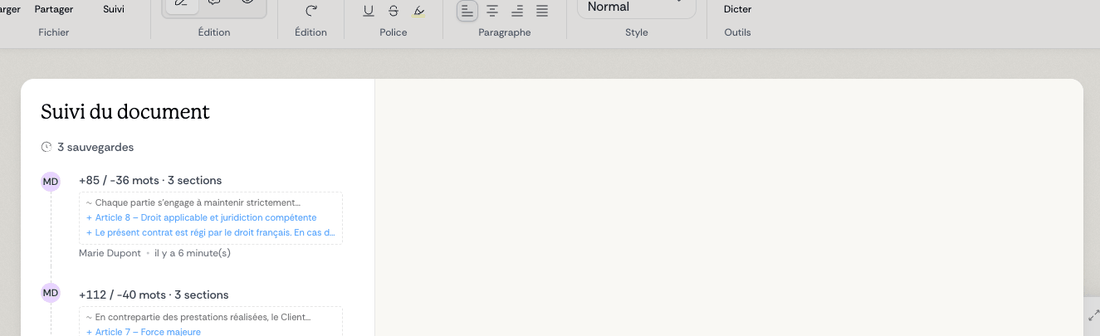
Each entry shows the author, the date and a quick summary of what changed (paragraphs added, removed or edited, plus a word count). A preview sits right underneath: additions in blue, deletions in red, edits in grey.
Open a version to see it with the changed passages highlighted in the document. Switch between the changes (diff) view and the original, and step through the changes with the up and down arrows.
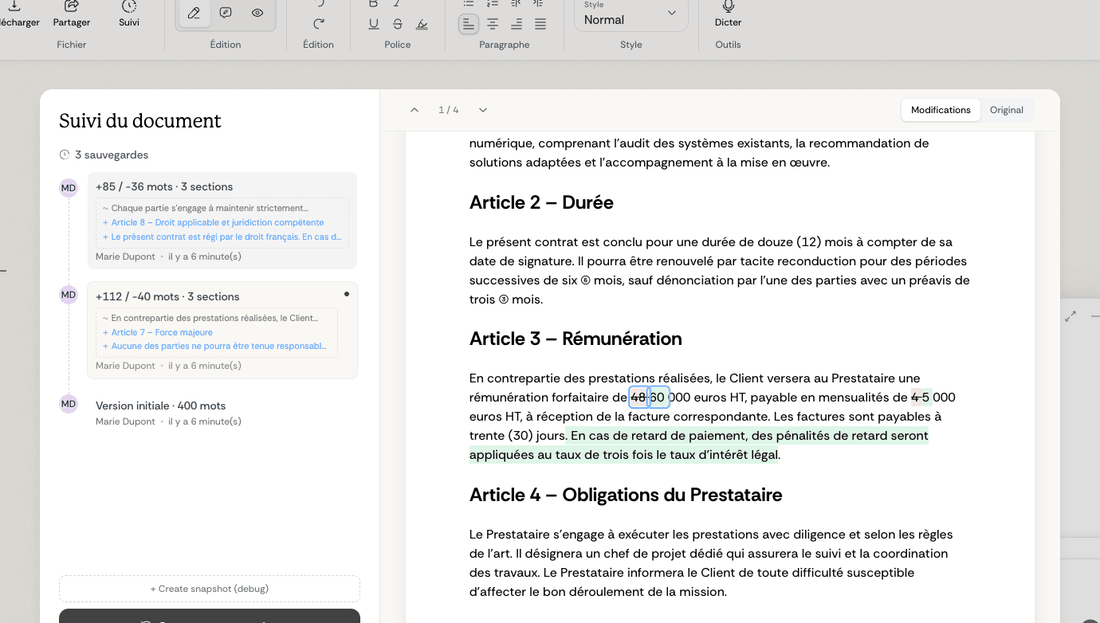
To go back to an earlier version, select it and restore it. Ordalie saves the current state first, automatically, before any restore. Restores and exports are logged in the history too, giving you a full audit trail of the document's life.
Validation status: clear visual markers show where each document stands in its review, so you always know what has been validated.
Analyse and transform with AI
Analysing your documents
The assistant can dig into your documents in several ways:
Across several documents: select several documents at once for a side-by-side or cross analysis. Ordalie spots patterns, differences and common ground between them, and writes up a structured report to suit your needs.
Pulling out the key facts: have Ordalie extract the parties, important dates, contractual obligations, sensitive clauses and other critical details, laid out in tables you can actually work with.
Ready-made analyses: start from templates built for the most common needs — executive summary, risk spotting, commitment extraction, a timeline of events.
Your own analyses: build your own templates around the questions you ask your documents again and again. Save them and reuse them to keep your reviews consistent.
Drafting and reworking documents
Drafting with you: Ordalie can write whole documents from your instructions, using your own reference files as the starting point. Contracts, letters, pleadings or memos — it follows your style and your existing templates.
Reworking what you have: reshape existing documents to new criteria — flip the point of view (buyer to seller), adapt to a different legal context, or update for new regulations.
Rewriting in place: select any passage in the editor to bring up rewriting options — smooth out the wording, shift the style, dial the technical level up or down, or apply your own instructions.
Exporting and sharing
Export-ready formats
You can export in two formats:
PDF: a high-quality PDF that keeps your formatting, internal links and metadata. Include or leave out comments, as you prefer.
Word (DOCX): export to Microsoft Word with your structure, formatting and advanced touches — automatic tables of contents, cross-references — kept wherever they are supported. If a conversion needs attention, Ordalie can flag fidelity warnings.
Anonymise on export: when you export, you can apply automatic anonymisation that swaps out sensitive details while keeping the document readable and well structured.
Keeping documents private
Fine-grained access: on organisation accounts, set exactly who can open, edit or comment on each document, with flexible permission levels.
Strong security: traffic between your browser and our servers is encrypted over HTTPS, and your documents are stored securely on our infrastructure.
Previews and files that stay in their source
Ordalie now shows more files without pulling them into the editor. Preview CSV files as a table, open Excel/XLSX files as sources or results, and open binary files attached to an external source straight from that source when the connector allows it.
This shines with your connected sources: a file in SharePoint, OneDrive, Google Drive or an email attachment can stay where it lives while you read, cite or preview it in Ordalie. When the assistant produces a document or spreadsheet, that too can be attached to its answer and opened right there.
Faithful to Word, on export
The Word editor and export have been strengthened to stay closer to the original: styles, lists, tables, sections, headers and footers, comments, replies and tracked changes, whenever that information is there. The aim is for an exported document to open cleanly in Microsoft Word, Word Online or Google Docs, without losing the legal structure of the original file.
You can export to PDF or Word from the editor — and also straight from an assistant answer when it has generated a document. Depending on the context, export a working version, an anonymised version or a workflow result.
Drafts, suggestions and warnings
When Ordalie writes or edits a document, the result may arrive as a draft or as suggestions to review. You stay in control: accept, reject or adjust each change before you finalise it.
- Ordalie's edits can be grouped together so reviewing them goes faster.
- Word exports apply sensible default styles to generated documents, so nothing comes out raw or inconsistent.
- When a conversion cannot keep certain Word elements perfectly, Ordalie flags a fidelity warning rather than hiding the loss.