

Workflows
Workflows are guided paths for legal work inside your workspace. They turn a task you do often into clear steps: you give the documents, instructions and details, and Ordalie handles the analysis, drafting or extraction and gives you a result you can reuse.
When to use a workflow
Reach for a workflow when a task has real structure to it. Common ones include analysing several documents at once, comparing contracts, legal research reports, hearing preparation, notarial checks, translating a document, drafting documents and corporate-structure diagrams.
For open questions and one-off reasoning, ask the assistant. Choose a workflow when you need a guided method, a structured output format, or a task that several people in your organization can reuse. Review each result: a reusable workflow does not guarantee identical answers.
How a workflow runs
- Choose a workflow from your workspace catalog.
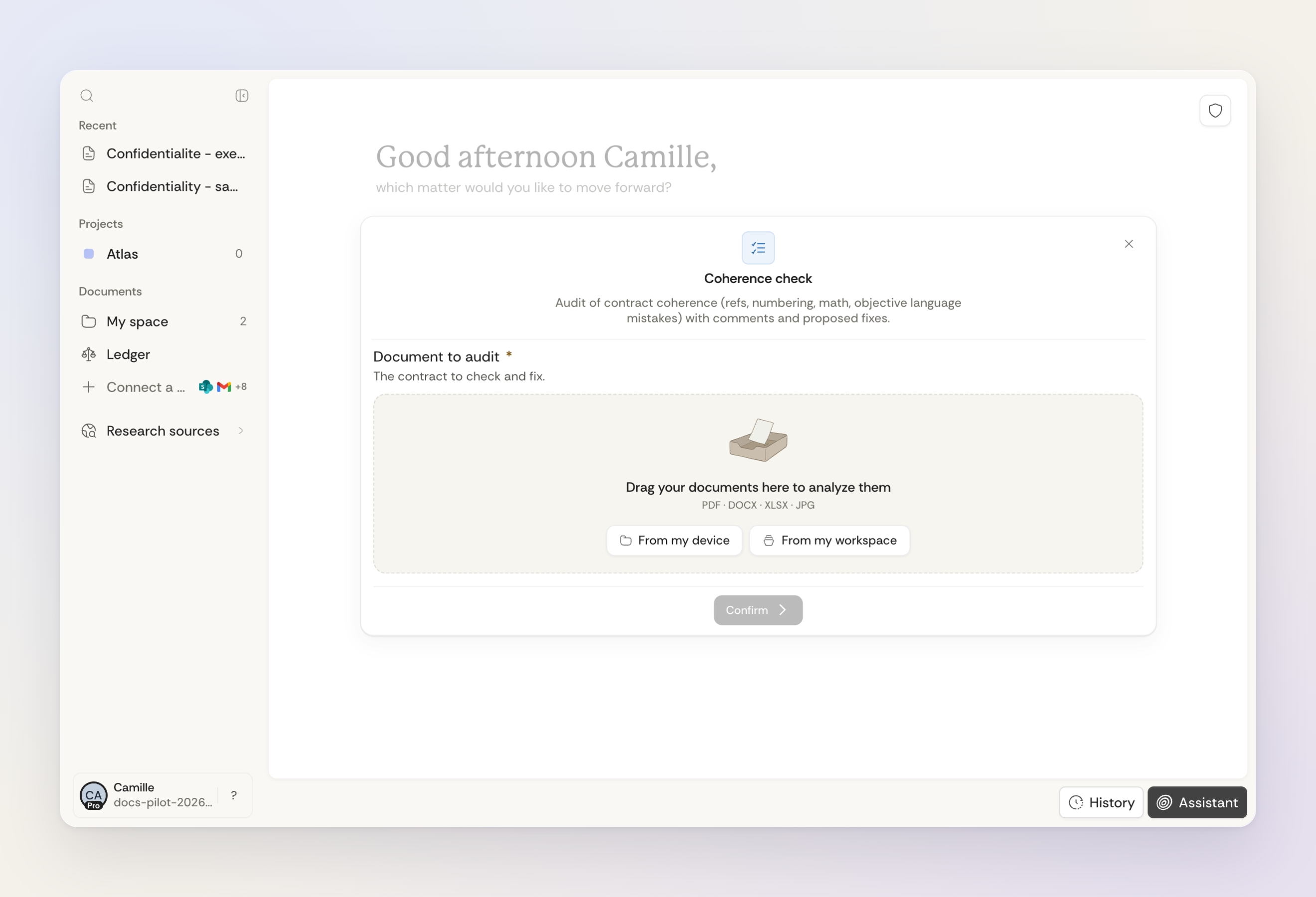
- Complete the displayed steps: documents, instructions, dates, numbers or choices, depending on the workflow. Check any prefilled values.
- Complete required fields marked with an asterisk. Use Previous to revisit a step, then confirm the final step to launch the workflow.
- Answer any clarification questions. Review the resulting table, legal memo, draft document, translated file, diagram or report, depending on the workflow.
- Open cited sources and generated files directly from the result when available.
Building your own workflows
Workflow creation is available to accounts with that access enabled. If creation controls appear in your workspace, start from a blank workflow or an example, then define inputs, steps and deliverables in the visual editor or code mode. If you need access, contact your Ordalie representative.
Before publishing privately, run a preview and check that it succeeds. The successful preview must match the current workflow version: after changing the workflow, run it again. Local saves keep a draft without publishing it. Once published privately, the workflow remains subject to your account’s permissions.
What organizations can control
In an organization, administrators decide which workflows show up in the catalog. Some can be hidden, and important ones can be pinned so they appear first. So two people may see different workflows depending on their organization and role.
Limits and beta workflows
Limits depend on the requested input. A single-document field accepts one file. A multi-document field accepts up to 50 files by default, unless that workflow defines a different limit; it may also require a minimum number. Correct a selection that falls outside those limits before continuing.
Some workflows require connected sources or a feature enabled for your account. Some notarial workflows remain in beta. If a workflow is missing from the catalog, ask your administrator to check its visibility and your access permissions.