


Main Features
Working with the assistant
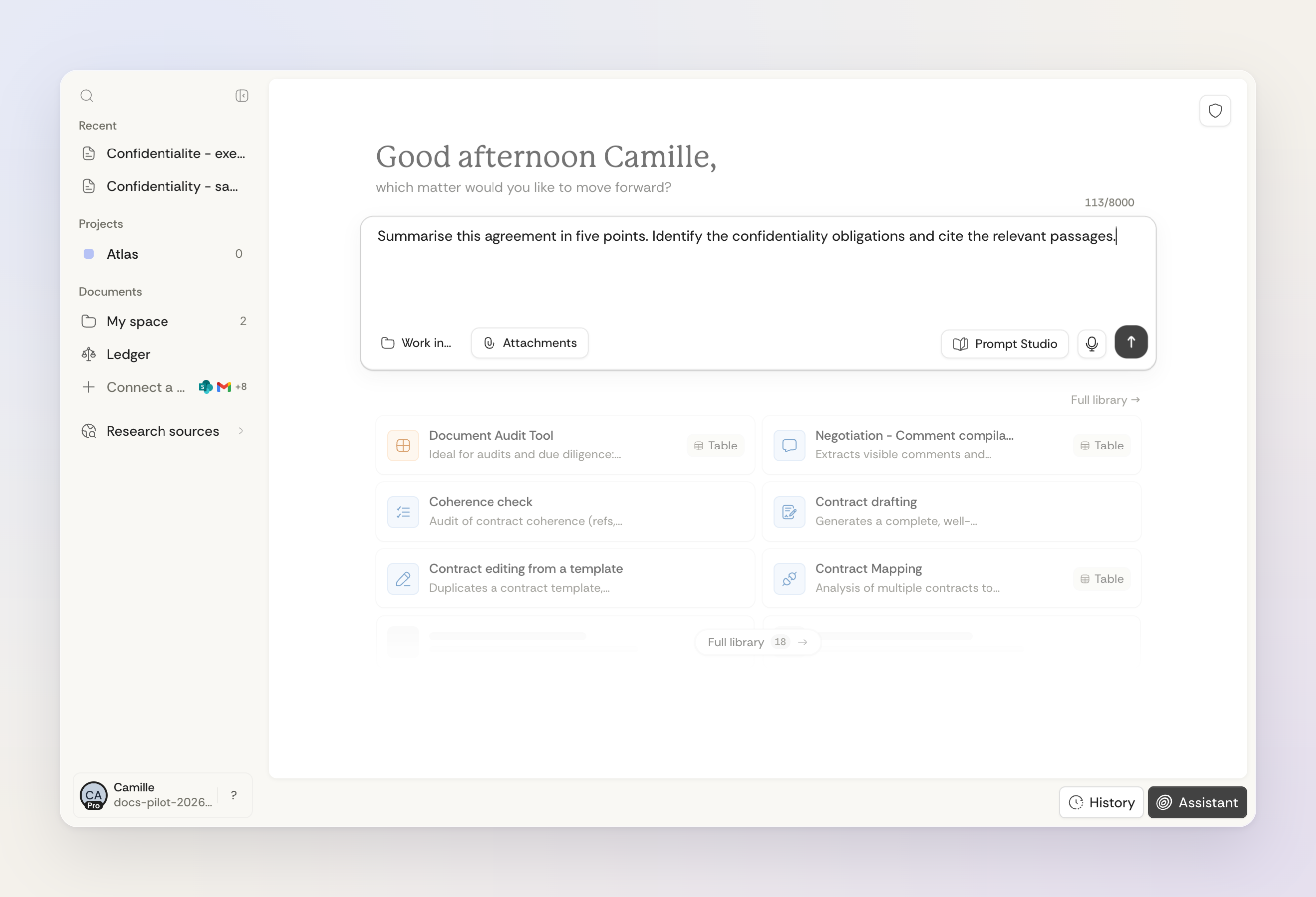
When you open Ordalie, you land in your workspace, which asks what you'd like to start with. Just write in plain words and the assistant takes it from there: ask a question, request a rephrasing, analyse a passage, or generate a document.
For a useful answer, state your objective, scope and expected format. Attach the relevant files or select the project you are working on; earlier exchanges in this conversation also provide context.
It's a great way to:
- ask a legal question about a document
- analyse or summarise a clause or passage
- get a rephrasing or a suggested improvement
- draft a simple contract, letter, or quick note
- explore legal reasoning from a specific case
Working in a project’s context
A project brings together the documents, conversations, external files and connected folders for a case. Select it as context to work on that case with the assistant. Sharing the project grants read access to its Ordalie documents and conversations; external files remain subject to their source’s permissions.
Steer a response and explore alternatives
While the assistant is working, type a clarification in the message field and send it. It can be taken into account at a subsequent step of the run; it does not instantly change a response already being produced. This steering accepts text only; wait for the response to finish before adding an attachment.
To explore a different approach, return to an earlier message and choose Reply from here. Ordalie keeps the alternatives as branches of the same conversation, so you can move between them without losing the path you were following.
Saving and reusing prompts
When you have a prompt that works well, save it in the Prompt Studio instead of rewriting it each time. The studio is where you create new prompts, improve existing ones, and keep a reusable library for recurring legal work.
Prompts can stay personal or be shared with your organization. Tags, favorites, recent use, search, and version history help you keep the library clean as it grows. If you already have prompts elsewhere, you can import them from a file, spreadsheet, or clipboard and review them before saving.
Working with workflows
When a task is well defined, you can pick a workflow instead of writing a free request. A workflow is a guided, ready-made path that walks you through the task step by step.
Each workflow asks for the documents, instructions and details it needs, then follows a defined path to produce a structured deliverable. The reusable structure helps guide the task; you still need to review the result and check cited sources.
It's also how we've folded in some of Ordalie's earlier tools: what we used to call analysis and drafting are now workflows in their own right.
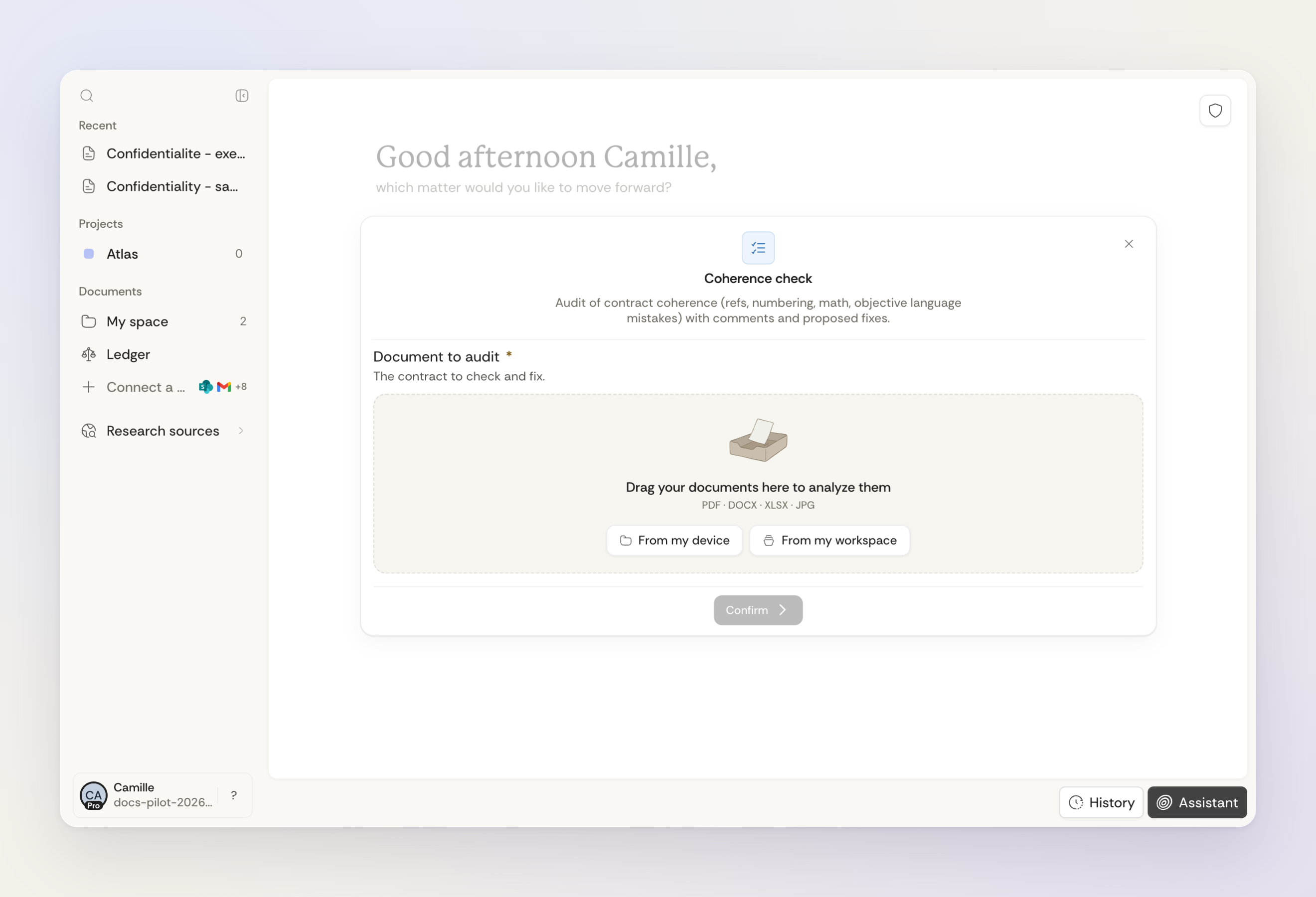
Workflows available today include:
- Multi-document analysis — Import several documents to pull out structured details (parties, dates, clauses) in a clear table. Ideal for due diligence and case-file summaries.
- Document drafting — Generate contracts, letters, or briefs from your instructions and templates. The workflow guides you step by step with focused questions.
- Research report — Run a structured legal research path that gathers sources, organises the findings, and returns a written report.
- Contract comparison — Compare several contracts, or versions of the same contract, and bring the differences together in one result.
- Hearing preparation — Analyse the documents in a case to get a structured summary: chronology, strengths, and points to watch.
- Notary workflows (beta) — Dedicated workflows for notarial matters, including sale-file review and donation-partage analysis.
- Corporate structure diagram — Turn your documents into a diagram of corporate structures (holdings, subsidiaries, cross-shareholdings).
Choose a workflow from your workspace catalog. The visible list depends on permissions and your organization’s settings; some workflows remain in beta. See the workflow guide for input preparation and limits.
When the assistant asks for clarification
The assistant may offer choices or a free-text answer to clarify your request. Select or enter your answers, then submit them. Escape hides the questionnaire: it does not send an answer or mark the question as irrelevant. You can reopen the questions from the conversation.
Translating a document
A translation workflow turns a document into the language you choose while creating a fresh copy. Handy when you want to keep the original, work on the translated version, and hold on to the result in Ordalie as a document you can act on.
Your organisation's administrators can tidy the workflows too: some can be pinned, hidden, or reserved for a particular context, so the list stays easy to read for the whole team.
Questions that stay with you
When the assistant needs to clarify a complex request, its questions no longer just scroll by in the conversation. They can stay on screen as a clear set of questions and answers, keeping the context behind each decision and making it easier to pick the reasoning back up.