Edit your PowerPoint presentations, in the interface or with the assistant
You can now edit PowerPoint presentations in Ordalie in two ways: yourself, slide by slide, or by describing the result to the assistant, which works directly in the file.
In the interface
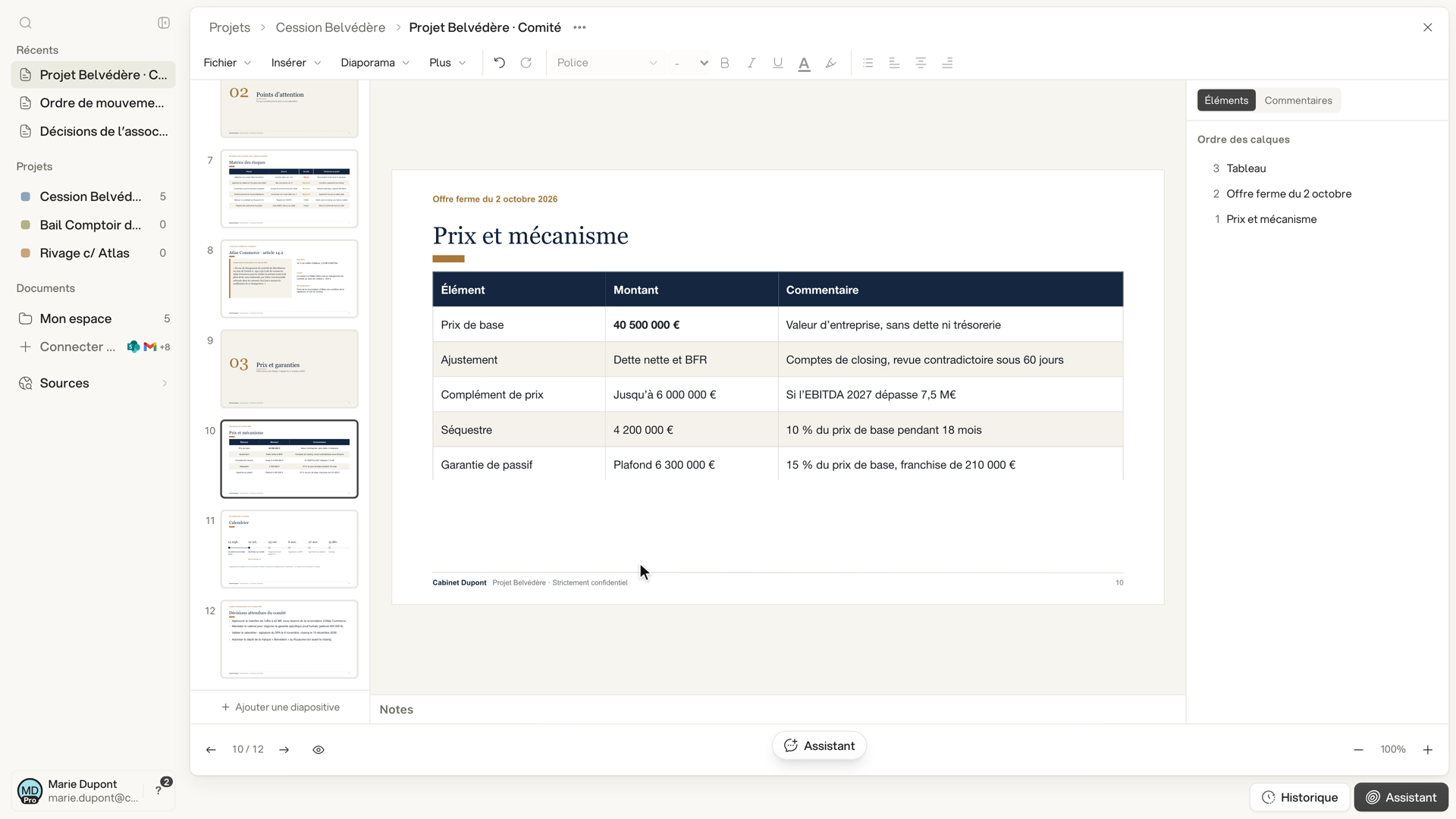
Open a PowerPoint file from your workspace or a project. Slides keep their original design: master, colours, fonts and numbering.
- Edit text and table cells: font, size, colour, bullets and alignment.
- Insert a text box, a table, an image or a shape.
- Add, duplicate or delete slides, and write speaker notes.
- Present from the beginning or from the current slide.
Several people can edit the same presentation at the same time. Everyone sees the others’ cursors and selections, including the assistant’s while it edits the presentation; click a name at the top of the slide to follow them from slide to slide. The uploaded file is kept as is; download the edited version as PPTX or PDF.
With the assistant
Describe the change, for example:
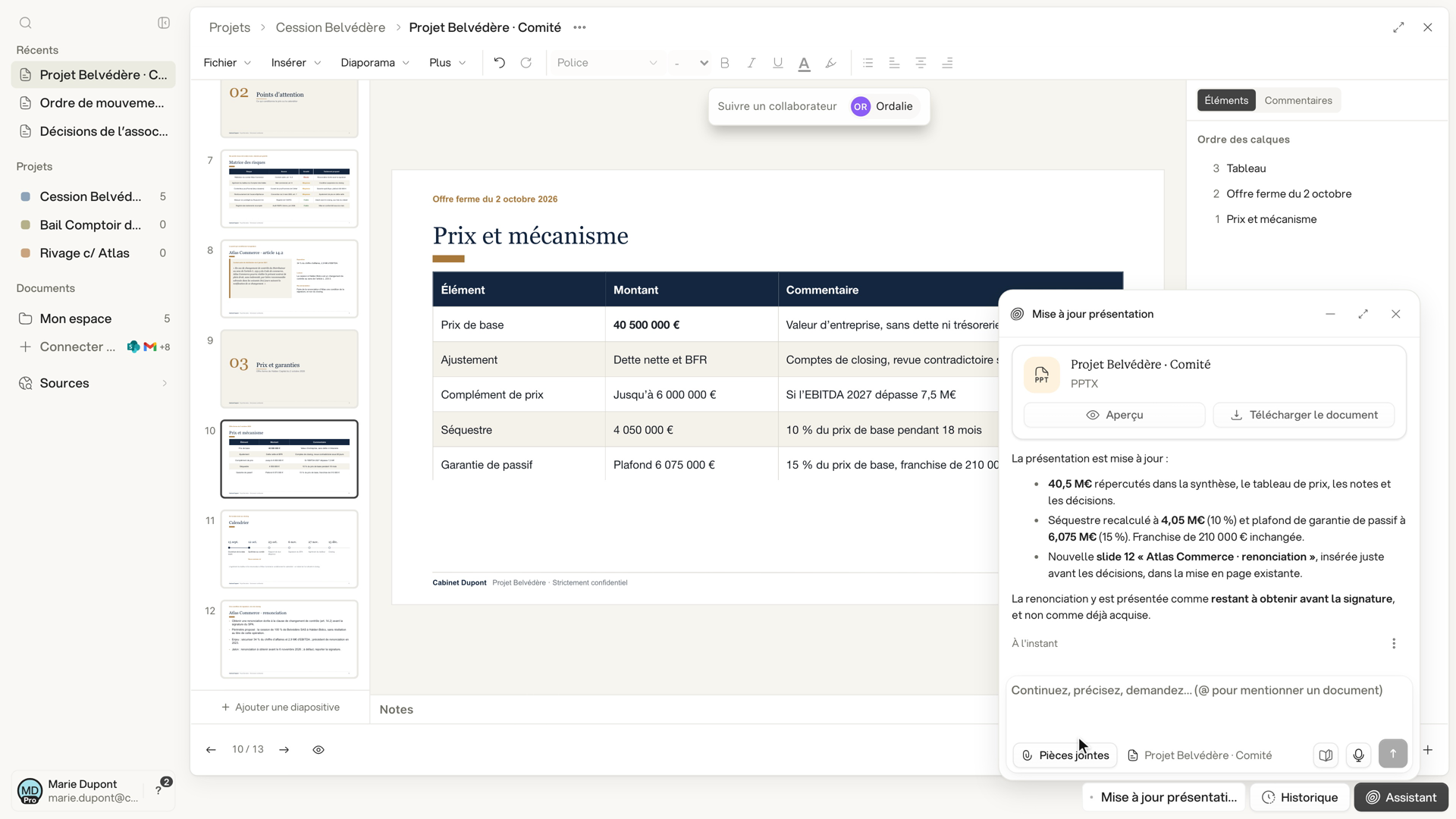
- “Carry the new €40.5M price through the whole presentation, and add a slide on Atlas Commerce’s waiver before the decisions.”
The assistant reads the presentation, edits text, tables and notes, and adds slides in the existing design. Its edits apply directly, without tracked changes: if the presentation is open, you see them arrive live. It can also build a new presentation from one of your firm’s templates (File, then Create template).
Limits
The assistant cannot add rows or columns to a table, create a table or a chart, or change a slide’s layout, the master or animations. Some elements, such as SmartArt, embedded objects or chart data, are not fully supported: a notice says so when the file opens. If a font is not available, the preview substitutes it, but the PPTX file keeps the original fonts.