


Compare two Word documents side by side
Open a Word document in the editor and click Compare with… to choose the second one. You can also select two compatible documents in your workspace or a project, then click Compare.
In the interface
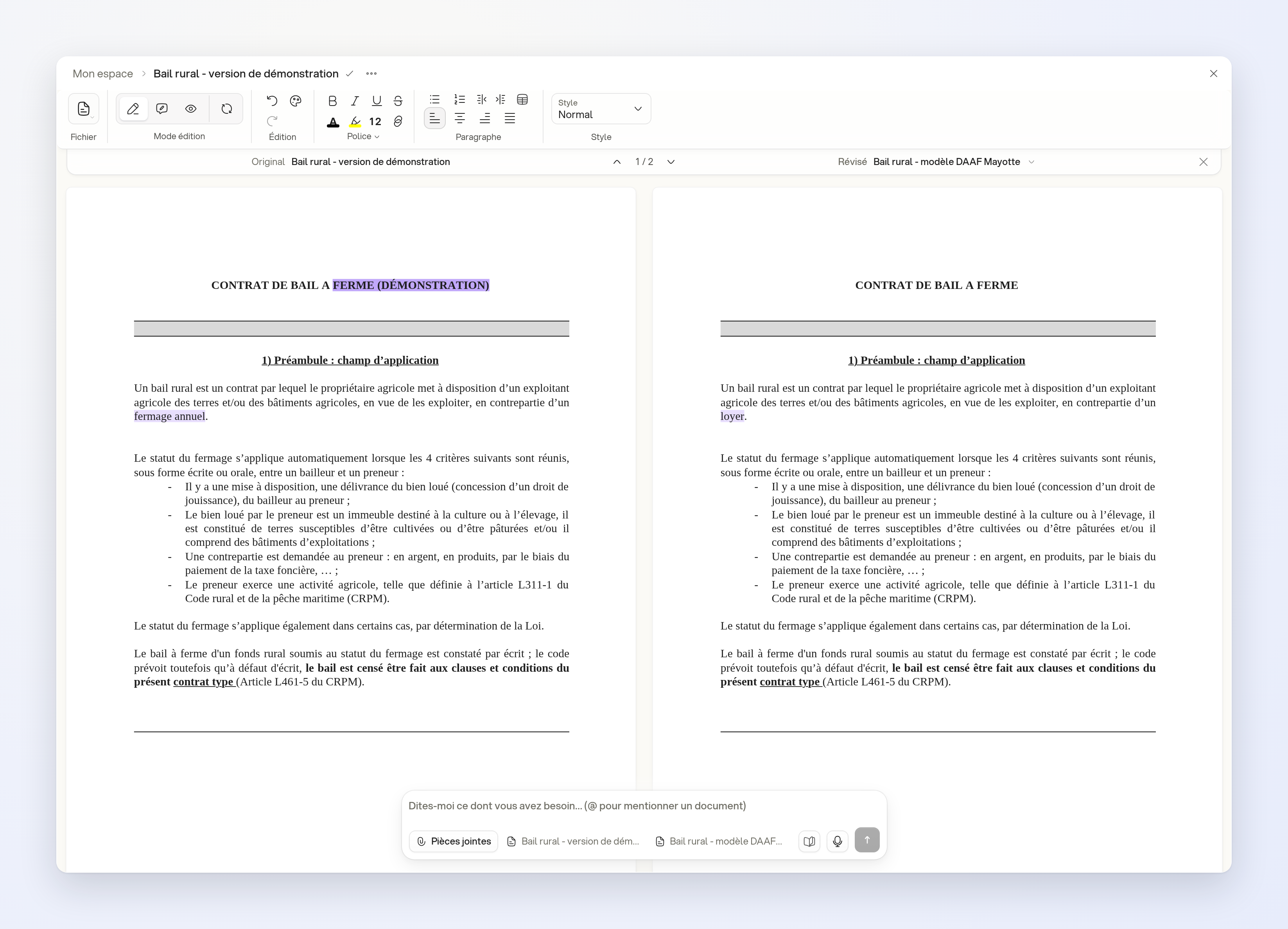
The documents appear side by side as Original and Revised. Body differences are highlighted. Use Previous change and Next change to move between them.
Where your permissions allow it, you can continue editing either document. The comparison updates after your edits: the documents are not frozen copies.
With the assistant
Attach both documents to your question and ask for a written comparison, for example:
- “What changed between these two versions of the lease? Quote the modified passages.”
This answer compares the requested content; it does not open the side-by-side view or replace its visual comparison.
Limits
Choose two distinct, accessible Word (.docx) documents or documents editable in Ordalie. PDFs, templates, files still being processed and failed files are excluded.
Differences detected in comments, styles, numbering, headers, footers or attachments are reported separately. Only body differences are highlighted.