Ordalie in Word and Outlook
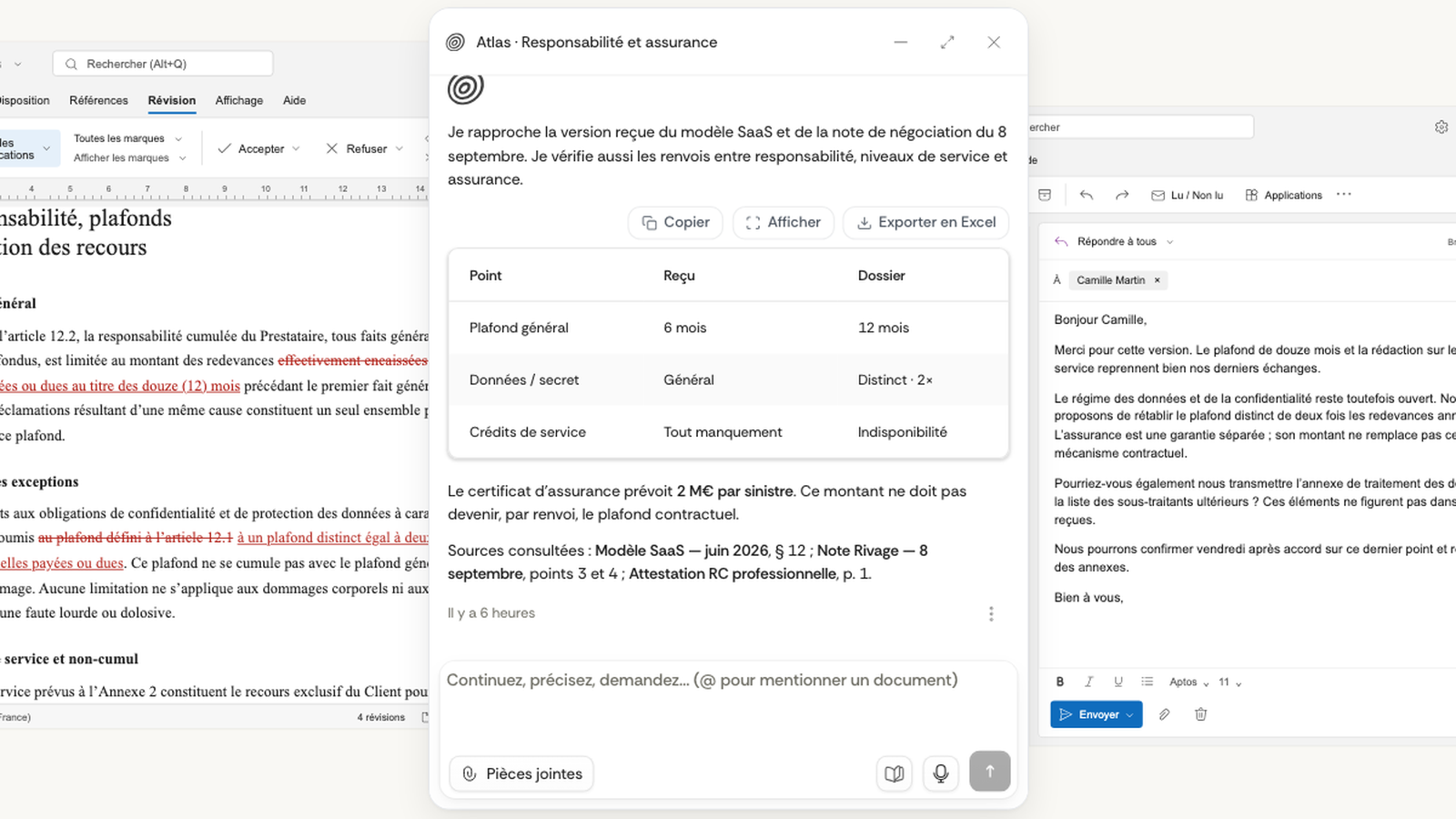
We have added Ordalie to Word and Outlook. The chat sits in a pane next to your document or email, and you can ask it to work on it.
It is the same assistant as in Ordalie, with its legal research tools and access to the documents and sources connected in your environment, based on your permissions. You can ask it to find a firm template to reuse a clause, or to look at a case file before preparing a reply. Quick actions cover the common requests; you can also write your own.
Both add-ins install from Microsoft Marketplace. You need an Ordalie account.
Working on a contract in Word
You are reviewing a clause and something feels off. Select the passage, then explain what you want to change:
The notice period is too short. Suggest thirty days and check whether that contradicts another passage in the contract.
Ordalie can read the selection, review the rest of the document and propose a rewrite. Text changes appear in Word's track changes. You review them where they apply, then accept or reject them. For a point that deserves discussion, you can ask for a comment instead.
The conversation can continue from this first task: refining a wording, looking up a source, or comparing the passage with another document available in Ordalie. You do not have to fit everything into a single instruction.
Translating and anonymizing, with a few choices to make
To translate, you choose the language and the scope: the selected passage or the whole document. The result is applied in Word with track changes, so you can compare both versions.
To anonymize, you choose what should be replaced: names, companies, addresses, contact details, amounts or dates. For example, you can mask the parties to a contract while keeping the amounts needed to read it.
One point to keep in mind before sharing the file: deleted text remains present in Word revisions until they are accepted. Review the replacements and check the version you intend to circulate, including its revisions.
Preparing a reply in Outlook
In Outlook, the starting point is the open message. You can ask what to take away from it, which actions are expected, or prepare a reply directly.
Draft a reply confirming receipt of the contract and asking for the missing schedule. For the signing date, say we will get back to them tomorrow.
The suggestion opens in an Outlook draft. You can edit it before sending; Ordalie does not send it.
As in the regular chat, you can add context from the documents in your environment. The message's attachments can also be imported to be read. The add-in starts from the selected message: this does not mean the whole thread, or all its attachments, have already been reviewed.
For other tasks, quick actions let you translate the message, extract its deadlines, or file it with its attachments in Ordalie.
Both add-ins at a glance
| Word | Outlook | |
|---|---|---|
| Starting point | The open document or the selected passage | The selected message |
| Example requests | Review a clause, draft, comment, translate, anonymize | Summarize, spot the actions, translate, prepare a reply |
| Result in the app | Tracked text changes and comments | A draft to review and send yourself |
| Ordalie environment | Chat, legal research, documents and sources available to your account | Chat, legal research, documents and sources available to your account |