


Edit your PDFs, in the interface or with the assistant
You can now edit a PDF in Ordalie in two ways: yourself, page by page, or by describing the result to the assistant.
In the interface
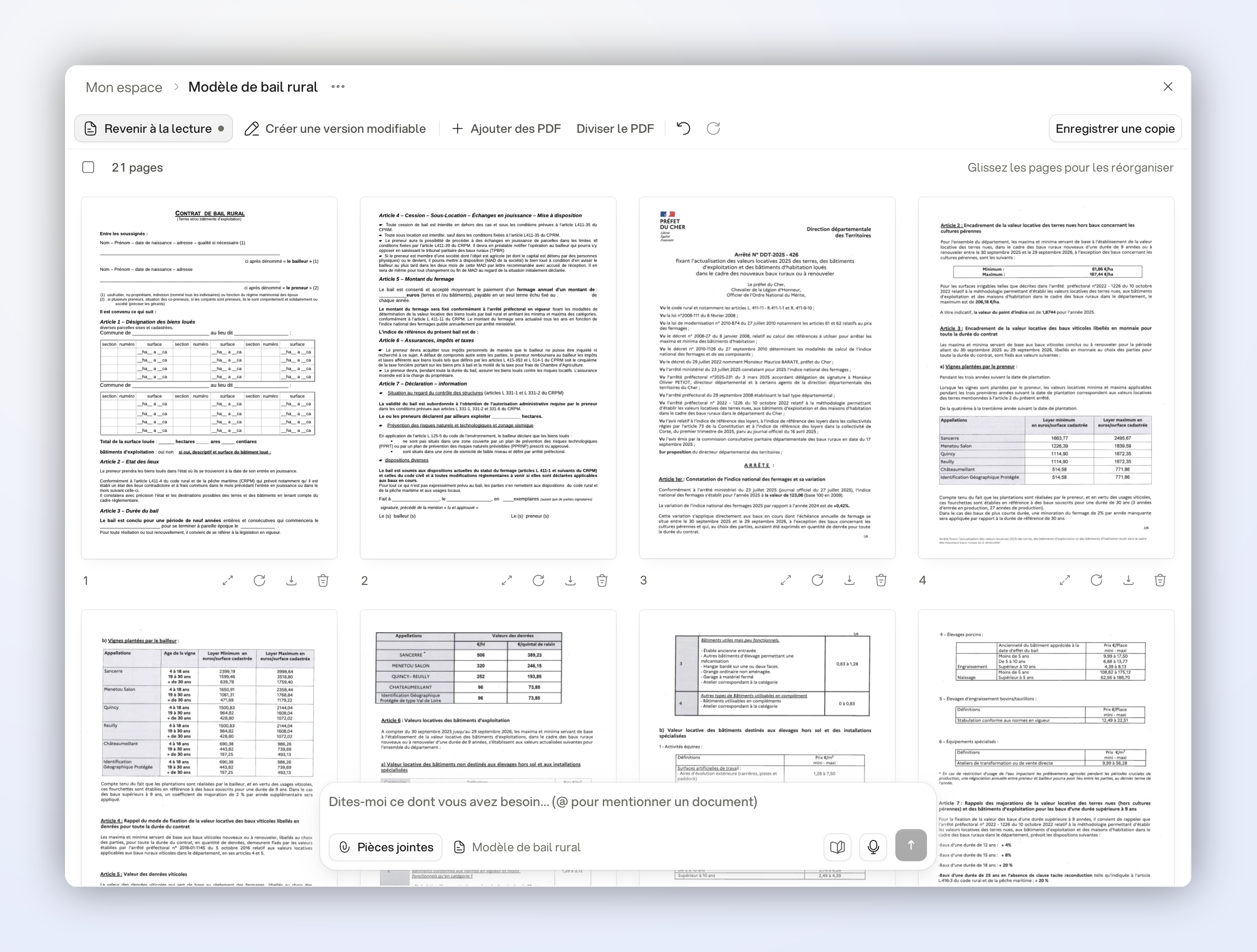
Open a PDF and click Edit PDF. The pages appear as thumbnails:
- Drag and drop pages to reorder them.
- Rotate, delete or extract pages.
- Add the pages of another PDF to combine several documents into one file.
- Click between two pages to split the file into several PDFs.
Click Save a copy: the result is saved in your workspace, or in the project when the PDF is opened from one. The original does not change. You can also download the result; a split PDF downloads as a ZIP archive.
With the assistant
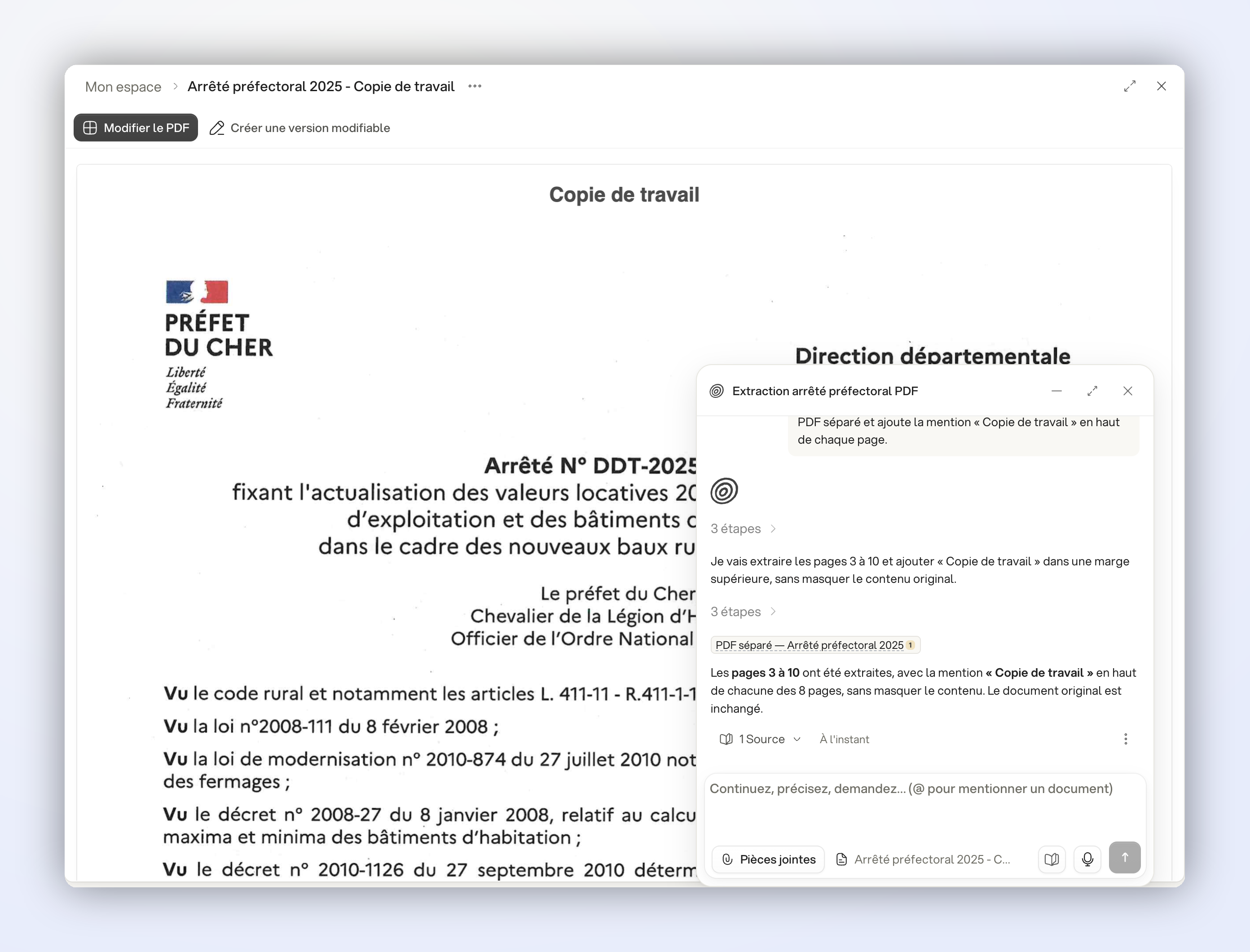
Ask for the PDF you need, for example:
- “Extract pages 3 to 10 into a separate PDF and add Working copy at the top of every page.”
The new PDF is added to your workspace; the original is kept.
Limits
In the interface, electronically signed PDFs, PDFs with forms and password-protected PDFs cannot be edited. The assistant cannot open a password-protected PDF. A rectangle drawn over text hides it but does not remove it: to remove information from a document, use anonymization.